> For the complete documentation index, see [llms.txt](https://video-copilot.gitbook.io/opticalflaresnuke/llms.txt). Markdown versions of documentation pages are available by appending `.md` to page URLs; this page is available as [Markdown](https://video-copilot.gitbook.io/opticalflaresnuke/installing-optical-flares-for-nuke/installation.md).
# Installation
***
Mac, PC, Linux Installation
Copy the plugin to your standard plugin path. This is either defined by the nuke environment variable (NUKE\_PATH) or directly by your application plugin directory, e.g.:
**Typical Install folders:**\
\
**Windows**\
C:\Program Files\Common Files\Nuke\x.x\plugins\\\
\
**Linux**\
/usr/local/Nuke/x.x/plugins/\
\
**Mac**\
/Library/Application Support/Nuke/x.x/plugins/
{% hint style="info" %}
**PLEASE NOTE:**\
If you are installing Nuke for the first time you will need to create the following directory manually:\
\
C:\Program Files > Common Files > ***Nuke*** > *{version number}* > ***plugins***\
\
**MENU.PY**\
Do not put the "menu.py" file into the\
\
C:\Program Files > {version number} > ***plugins***\
\
plugins folder or it will overwrite the Nuke menu.py file.
{% endhint %}
## Installing Textures and Presets
\
The presets and textures are available as a separate download and have to be copied to your desired location. Optical Flares will look up this data in the following directories by default:
**Windows**\
Default application directory\
\
**Linux**\
Your home directory\
\
**Mac**\
/Library/Application Support/Optical Flares/
{% hint style="info" %}
**PLEASE NOTE:**\
Since Nuke is changing default paths during startup and runtime we recommend that you set up Optical Flares\
to custom install directories. Specific path variables help Optical Flares to identify the install locations\
of the license and the textures/presets. You can set up\
\
OPTICAL\_FLARES\_PATH\
\
to identify that location.\
If it is not present, Optical Flares will look up the data in the default directories as listed in our install\
Instructions above but they may be changed by Nuke and in this case you will need to make a [custom install path](https://www.videocopilot.net/help/opticalflaresnuke/help_files_v2/installing_optical_flares_for_nuke/installation/).
{% endhint %}
## Generating License
### **For Nuke 13.0 and Later**
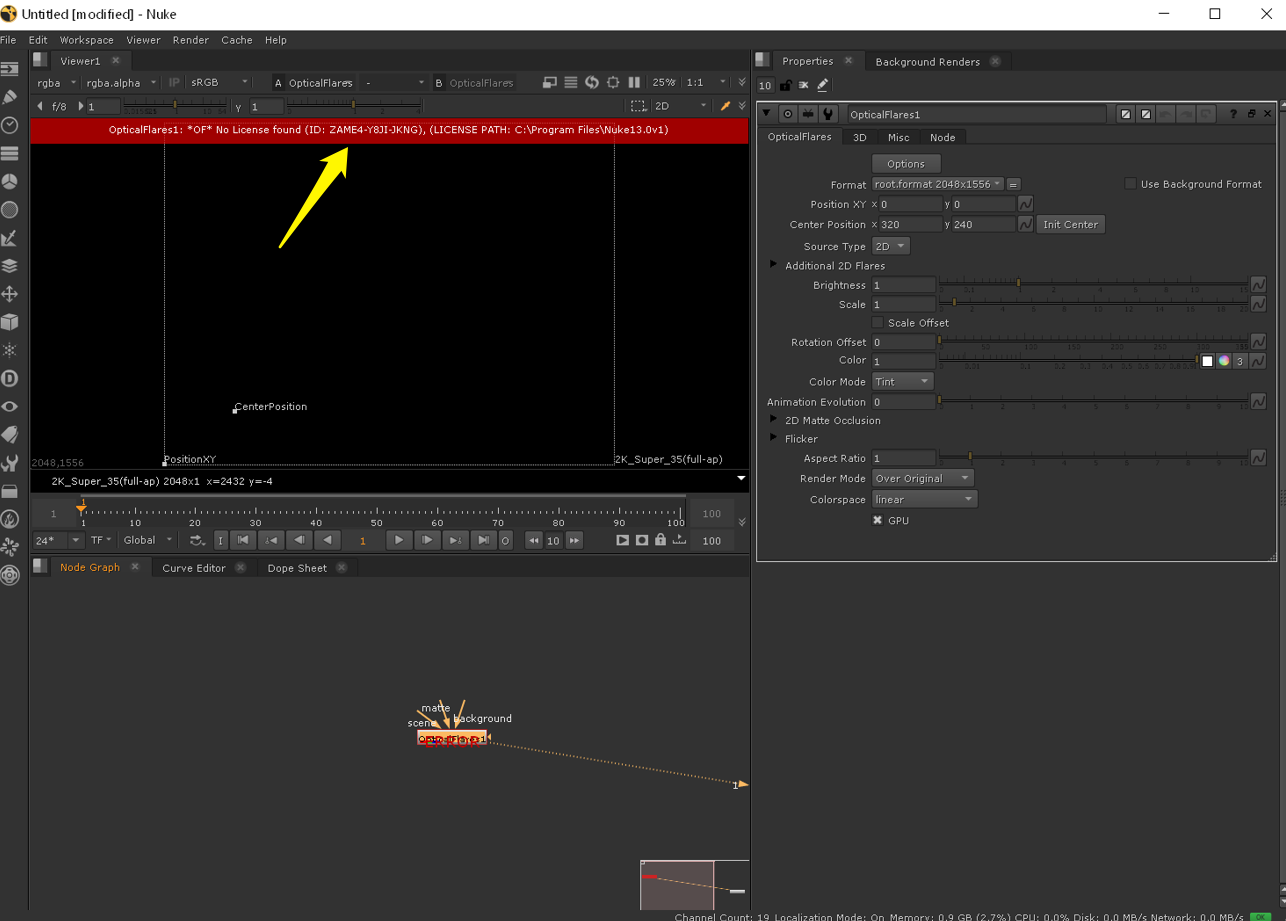
After installing the plugin, create a node. As soon as you connect the node to the viewer, the Hardware ID will be displayed in the viewer as well and is available to the Nuke logging system. This Hardware ID will be used to download a license in the VC Product Download area.
{% hint style="info" %}
The license path and Hardware ID will be prompted in the OF console as well.
{% endhint %}
Optical Flares for Nuke Plugin
Video Copilot Product Download Section
### For Versions Before Nuke 13.0
If you install the plugin and create a node, you will be prompted with a license dialog. This dialog will show you a hardware ID. This ID can be used to download a license in the VC Product Download area.
Optical Flares for Nuke Plugin
Video Copilot Product Download Section
### Installing the License
The license can be installed to the same default directories as the **textures and presets**:
**Windows**\
Default application directory (Nuke application directory)\
\
**Linux**\
Home directory\
\
**Mac**\
/Library/Application Support/Optical Flares/
## Installing Shortcut inside Nuke with your Menu.py
Alternatively you can right click, choose Others>All Plug-ins> Then select Optical Flares from the “O” menu. But just install the menu shortcut!