> For the complete documentation index, see [llms.txt](https://video-copilot.gitbook.io/opticalflaresnuke/llms.txt). Markdown versions of documentation pages are available by appending `.md` to page URLs; this page is available as [Markdown](https://video-copilot.gitbook.io/opticalflaresnuke/getting-started/lens-flare-editor-options.md).
# Lens Flare Editor (Options)
***
## Preview Window
The preview windows allows you to try out the lens flare presets and experiment with Brightness and Scale of lens objects.
{% hint style="info" %}
**Show BG:**\
If you input a background image into the Optical Flares node, this image can be displayed in the background of the flare. NOTE: the gamma control for this input is located in the Misc Tab.
{% endhint %}
## Browser
The browser windows allows you to load lens flare presets from the library or customize and create lens flares from scratch. You can also, right click a preset and combine it with the currently loaded one.
## Editor
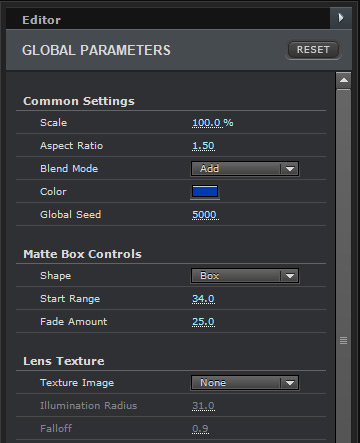
The Editor window will display properties for the selected item in the stack. This includes the Global Parameters and individual Lens Objects.
## Stack
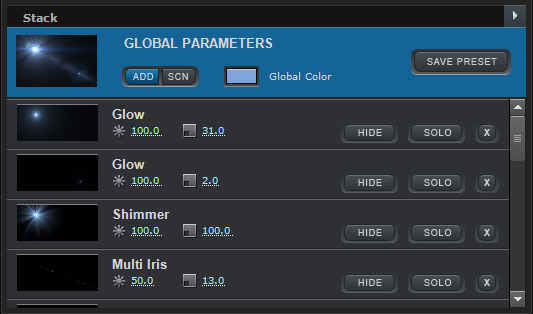
The Stack Window contains the lens objects for the current lens flare. You can select objects, rename, rearrange, hide, solo and delete these objects. You can also Duplicate the objects from the wing menu in the top right.
## Flare Global Parameters
{% hint style="info" %}
### **Flare Global Parameters**
### **Common Settings**
Control global flare settings like overall scale, aspect ratio, Color and Blend Mode.
### **Matte Box Controls**
Matte box controls how far the lens flare position can go beyond the frame before it fades out.
### **Lens Texture**
Let’s you select an image texture that illuminates around the lens flare position.
### **Chromatic Aberration**
Generate color imperfections similar to a real lens.
### **Color Correction**
Basic overall flare color correction such as: Brightness, Contrast & Saturation.
{% endhint %}
## Adjusting the Panels
Dragging the middle divider between panels allows you to shift them around between or to the edge of the user interface. You can also reset the panels from the Window menu on top.
## Copy and Paste
You can copy and paste individual parameters or groups of parameters by right clicking on the property name inside the UI
### Shortcuts
**Ctrl+D:** Duplicate Selected Object in stack.\
\
**Ctrl+C and Ctrl+V:** Copy and paste.
.jpg)