> For the complete documentation index, see [llms.txt](https://video-copilot.gitbook.io/element2/llms.txt). Markdown versions of documentation pages are available by appending `.md` to page URLs; this page is available as [Markdown](https://video-copilot.gitbook.io/element2/texturing-and-materials/standard-shaders.md).
# Standard Shaders
## BUILDING MATERIALS
Click on the the slots for those material settings and load your own texture maps into those slots. For example:
### EXAMPLE \&#xNAN;*Create a metallic looking texture*
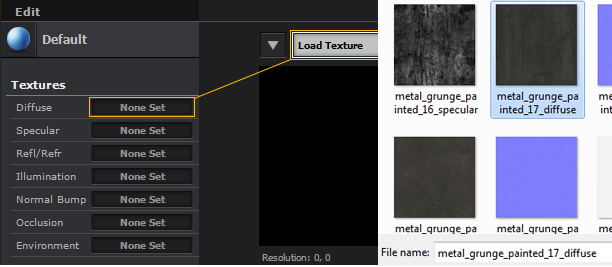
1\. Click on the Diffuse slot where it says "none set" and a popup window comes up, click on the [Load Texture slot](https://www.videocopilot.net/docs/element2/texturing_and_materials/standard_shaders/#Load%20Texture).\
2\. This will let you navigate to where your textures are located, and click open to select that texture map.\
3\. You can import JPEG or PNG files. [Go here](https://www.videocopilot.net/help/element/help_files_v2/importing_3d_objects_into_element_3d/importing_3d_objects/) for recommended asset storing. This will help files stay linked together when transferring files.\
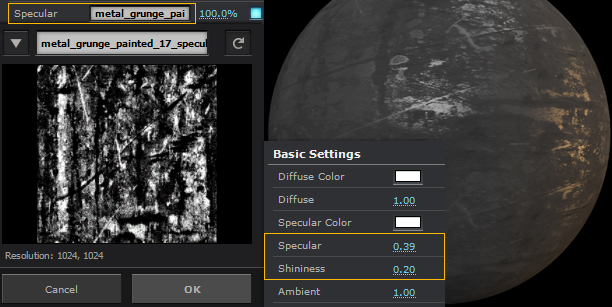
4\. If you have a [Specular](https://www.videocopilot.net/docs/element2/texturing_and_materials/standard_shaders/#Specular) version of the map you can do the same process for selecting that map and loading it into the specular slot.\
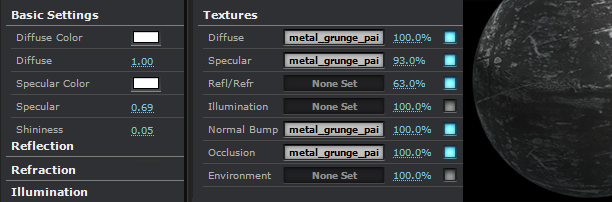
5\. Now you can [adjust each channel](https://www.videocopilot.net/docs/element2/texturing_and_materials/standard_shaders/#Adjust%20Channels) with the options that correspond to the Texture Slot name further down the material options window.\
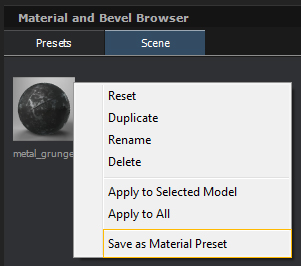
6\. You can also [save your material settings](https://www.videocopilot.net/docs/element2/texturing_and_materials/standard_shaders/#Save%20Preset) by right clicking on the Main Material Name slot and selecting [Save as Material Preset](https://www.videocopilot.net/docs/element2/texturing_and_materials/standard_shaders/#Save%20Preset).
***
## LOAD A TEXTURE
***
## SPECULAR
***
## ADJUST CHANNELS
***
## SAVE AS MATERIAL PRESET