> For the complete documentation index, see [llms.txt](https://video-copilot.gitbook.io/element2/llms.txt). Markdown versions of documentation pages are available by appending `.md` to page URLs; this page is available as [Markdown](https://video-copilot.gitbook.io/element2/render-settings/physical-environment.md).
# Physical Environment
## **Exposure/Gamma/Tint**
Control the bightness of the evironment map and reflections.
## **Lighting Influence**
Control how much AE lights affect the scene. Useful if reflections are strong and are overpowering shadows.
## **Show in BG**
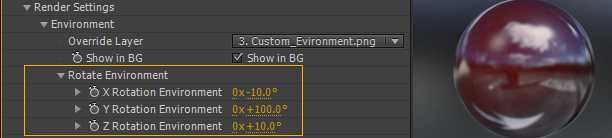
Lets you toggle the Environment map on and off in your scene's background. **Override Layer**\
If you wanted to use a layer as the Environment map, you can choose a layer in your project from the Override Layer drop down to activate it. Another way to do this would be to use the [Custom Texture Maps](https://www.videocopilot.net/help/element/help_files_v2/texturing_and_materials/animated_video_textures/) slots.
## **Override Layer**
If you wanted to use a layer as the Environment map, you can choose a layer in your project from the Override Layer drop down to activate it. Another way to do this would be to use the [Custom Texture Maps](https://www.videocopilot.net/help/element/help_files_v2/texturing_and_materials/animated_video_textures/) slots.
## **Rotate Environment**
Fine tune the X,Y, and Z rotation of your Environment.
.jpg)