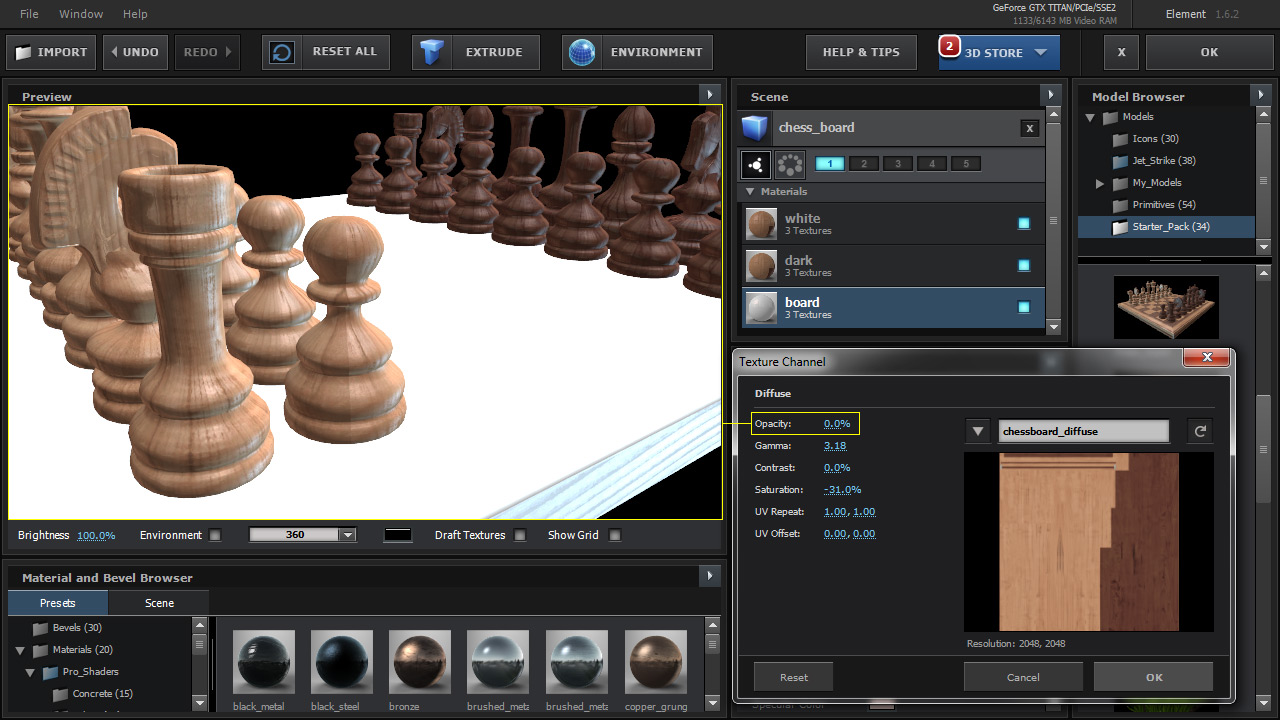
# Texture Channel Pop-up

***

<figure><img src="https://2307539615-files.gitbook.io/~/files/v0/b/gitbook-x-prod.appspot.com/o/spaces%2FVXPIT6wWK7VeTYMAHNYe%2Fuploads%2FD2piNF5cJVC1oOqI2avq%2FTexture-Channel-Pop-Up-Example.jpg?alt=media&#x26;token=71ff5a41-d41d-4b81-a716-f434461c5e05" alt=""><figcaption></figcaption></figure>

#### Additional Options

When you go to load a texture file and click on the "none set" box to navigate to your texture, a pop-up comes up with a few additional options.

### Opacity

This controls the visibility of the texture,&#x20;same function that is outside this window next&#x20;to the texture slot.

<figure><img src="https://2307539615-files.gitbook.io/~/files/v0/b/gitbook-x-prod.appspot.com/o/spaces%2FVXPIT6wWK7VeTYMAHNYe%2Fuploads%2FzRwQtsqke37WWVj1RLBH%2FTexture-Channel-Pop-Up-Opacity.jpg?alt=media&#x26;token=5d339121-a6d0-407c-b4b2-2847961fa337" alt=""><figcaption></figcaption></figure>

### Gamma

Control the brightness of the image.

<figure><img src="https://2307539615-files.gitbook.io/~/files/v0/b/gitbook-x-prod.appspot.com/o/spaces%2FVXPIT6wWK7VeTYMAHNYe%2Fuploads%2FHAGNsgv0nNa5df1SFtHM%2FTexture-Channel-Pop-Up-Gamma.jpg?alt=media&#x26;token=379ebc6f-a5b1-476d-8b36-d40c6b63f4b6" alt=""><figcaption></figcaption></figure>

### Contrast

Control the difference between&#x20;light and dark parts of the image.

<figure><img src="https://2307539615-files.gitbook.io/~/files/v0/b/gitbook-x-prod.appspot.com/o/spaces%2FVXPIT6wWK7VeTYMAHNYe%2Fuploads%2FGfFfPKx19FCC0tILxTpH%2FTexture-Channel-Pop-Up-Contrast.jpg?alt=media&#x26;token=3f7a780f-bb27-4790-8429-ba1928533aba" alt=""><figcaption></figcaption></figure>

### Saturation

Control how much color your image has

<figure><img src="https://2307539615-files.gitbook.io/~/files/v0/b/gitbook-x-prod.appspot.com/o/spaces%2FVXPIT6wWK7VeTYMAHNYe%2Fuploads%2FF1nOHpS0j788cchoPtwY%2FTexture-Channel-Pop-Up-Saturation.jpg?alt=media&#x26;token=fc420b77-ccdf-464a-9aa2-cafd8da38449" alt=""><figcaption></figcaption></figure>

### UV Repeat

Adjust how many times the the material will repeat. This will tile the material for this specific texture channel

<figure><img src="https://2307539615-files.gitbook.io/~/files/v0/b/gitbook-x-prod.appspot.com/o/spaces%2FVXPIT6wWK7VeTYMAHNYe%2Fuploads%2Fqom6nOech86J5Iu3ggJM%2FTexture-Channel-Pop-Up-UV_Repeat-psd.jpg?alt=media&#x26;token=5c5d4b3c-da16-4e86-b277-50b005690215" alt=""><figcaption></figcaption></figure>

### UV Offset

Shifts the position of the texture for this specific texture channel.

<figure><img src="https://2307539615-files.gitbook.io/~/files/v0/b/gitbook-x-prod.appspot.com/o/spaces%2FVXPIT6wWK7VeTYMAHNYe%2Fuploads%2F5NPRGqI4HqWTQARbP9iJ%2FTexture-Channel-Pop-Up-UV_Offset.jpg?alt=media&#x26;token=57533daf-f43d-4082-abd3-4777674b59ad" alt=""><figcaption></figcaption></figure>

### Load Texture

Navigate your computer directory to choose your texture file. Can right click to Clear or Reveal File in Explorer.

<figure><img src="https://2307539615-files.gitbook.io/~/files/v0/b/gitbook-x-prod.appspot.com/o/spaces%2FVXPIT6wWK7VeTYMAHNYe%2Fuploads%2Fbm6AYdBY4uPJfeswnj9s%2FTexture-Channel-Pop-Up-Load-Textures-Computer.jpg?alt=media&#x26;token=285a432b-5510-4544-a6a7-6b93dcf456e5" alt=""><figcaption></figcaption></figure>

### Down Arrow

Choose Load Texture or a Custom Material that has been loaded as a Custom Texture Slot in the Element effects control panel.

<figure><img src="https://2307539615-files.gitbook.io/~/files/v0/b/gitbook-x-prod.appspot.com/o/spaces%2FVXPIT6wWK7VeTYMAHNYe%2Fuploads%2FzzaetZ5eeyCBmRmCPNJq%2FTexture-Channel-Pop-Up-Arrow.jpg?alt=media&#x26;token=909a5550-2b3e-4eb9-8135-676922931c90" alt=""><figcaption></figcaption></figure>
