# Building Materials in Element 3D
***
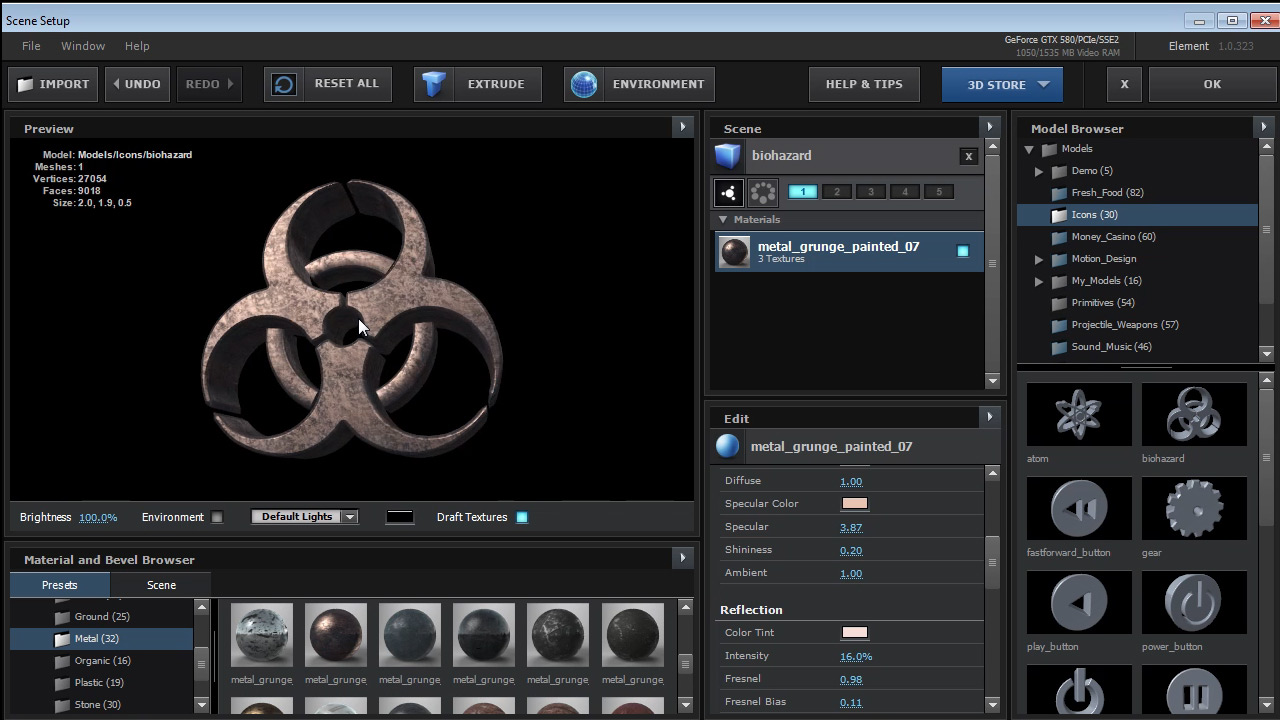
There are a few different key options for creating **great** looking materials in Element 3D. You can adjust [Diffuse](https://www.videocopilot.net/help/element/help_files_v2/texturing_and_materials/material_texture_slots/#diffuse), [Specular](https://www.videocopilot.net/help/element/help_files_v2/texturing_and_materials/material_texture_slots/#specular), [Reflection/Refraction](https://www.videocopilot.net/help/element/help_files_v2/texturing_and_materials/material_texture_slots/#reflection_refraction), [Illumination](https://www.videocopilot.net/help/element/help_files_v2/texturing_and_materials/material_texture_slots/#illumination), [Normal Bump](https://www.videocopilot.net/help/element/help_files_v2/texturing_and_materials/material_texture_slots/#normal_bump), [Occlusion](https://www.videocopilot.net/help/element/help_files_v2/texturing_and_materials/material_texture_slots/#occlusion), and [Normal Bump](https://www.videocopilot.net/help/element/help_files_v2/texturing_and_materials/material_texture_slots/#normal_bump), [Environment](https://www.videocopilot.net/help/element/help_files_v2/texturing_and_materials/material_texture_slots/#environment). See [Material Texture Slots](https://www.videocopilot.net/help/element/help_files_v2/texturing_and_materials/material_texture_slots/) for more specific descriptions of each material setting.
***
**Beyond The Basics Video**\
• Customizing UI\
• Adding textures\
• Basic texture mapping options\
[**WATCH NOW!**](https://www.videocopilot.net/help/element/tutorial/basic/in_depth_overview/)
***
The main idea is that you can click on the the slots for those material settings and load your own texture maps into those slots. For example:
#### EXAMPLE \&#xNAN;*Create a metallic looking texture*
1\. Click on the Diffuse slot where it says "none set" and a popup window comes up, click on the [Load Texture slot](https://www.videocopilot.net/docs/element/texturing_and_materials/building_materials_in_element_3d/#Load%20Texture).\
2\. This will let you navigate to where your textures are located, and click open to select that texture map.\
3\. You can import JPEG or PNG files. [Go here](https://www.videocopilot.net/help/element/help_files_v2/importing_3d_objects_into_element_3d/importing_3d_objects/) for recommended asset storing. This will help files stay linked together when transferring files.\
4\. If you have a [Specular](https://www.videocopilot.net/docs/element/texturing_and_materials/building_materials_in_element_3d/#Specular) version of the map you can do the same process for selecting that map and loading it into the specular slot.\
5\. Now you can [adjust each channel](https://www.videocopilot.net/docs/element/texturing_and_materials/building_materials_in_element_3d/#Adjust%20Channels) with the options that correspond to the Texture Slot name further down the material options window.\
6\. You can also [save your material settings](https://www.videocopilot.net/docs/element/texturing_and_materials/building_materials_in_element_3d/#Save%20Preset) by right clicking on the Main Material Name slot and selecting [Save as Material Preset](https://www.videocopilot.net/docs/element/texturing_and_materials/building_materials_in_element_3d/#Save%20Preset).
### LOAD A TEXTURE
### SPECULAR
### ADJUST CHANNELS
### SAVE AS MATERIAL PRESET