# Advanced Material Options

***

#### Force Opacity

Adjust transparency of polygons the material is mapped to. (Note: Transparency is a bit of a limited function in Element due to some current gpu limitations and may not yield results like you would find in a full 3d program). Also see [Render Order](https://www.videocopilot.net/help/element/help_files_v2/render_settings/render_order_opacity_maps/) for alternate looks when using multiple transparent objects in a scene.

<figure><img src="https://2307539615-files.gitbook.io/~/files/v0/b/gitbook-x-prod.appspot.com/o/spaces%2FVXPIT6wWK7VeTYMAHNYe%2Fuploads%2FSXYpo1KWsr8bMoHPTZqA%2FForced-Opacity100.jpg?alt=media&#x26;token=2a91d618-b511-4463-9b97-33248bfd74e6" alt=""><figcaption></figcaption></figure>

***

#### Smoothing

Adjust the amount of smoothing for polygons associated with this material

<figure><img src="https://2307539615-files.gitbook.io/~/files/v0/b/gitbook-x-prod.appspot.com/o/spaces%2FVXPIT6wWK7VeTYMAHNYe%2Fuploads%2FbOjWg6yasBkALcdKSe8R%2FSmoothing_0.jpg?alt=media&#x26;token=dab405a9-8afb-41ef-8f6d-fe487a6566ce" alt=""><figcaption></figcaption></figure>

***

#### Alpha Threshold

Converts semi-transparent areas of the map into completely transparent or completely opaque areas. See [Opacity Maps](https://www.videocopilot.net/help/element/help_files_v2/texturing_and_materials/opacity_maps/) for more info.

<figure><img src="https://2307539615-files.gitbook.io/~/files/v0/b/gitbook-x-prod.appspot.com/o/spaces%2FVXPIT6wWK7VeTYMAHNYe%2Fuploads%2Fav3fwaIscmxCm2bzOgLy%2FAlpha%20Threshold(1).jpg?alt=media&#x26;token=549d8f28-7367-488c-b776-8460ac8c659e" alt=""><figcaption></figcaption></figure>

***

#### Matte Shadow

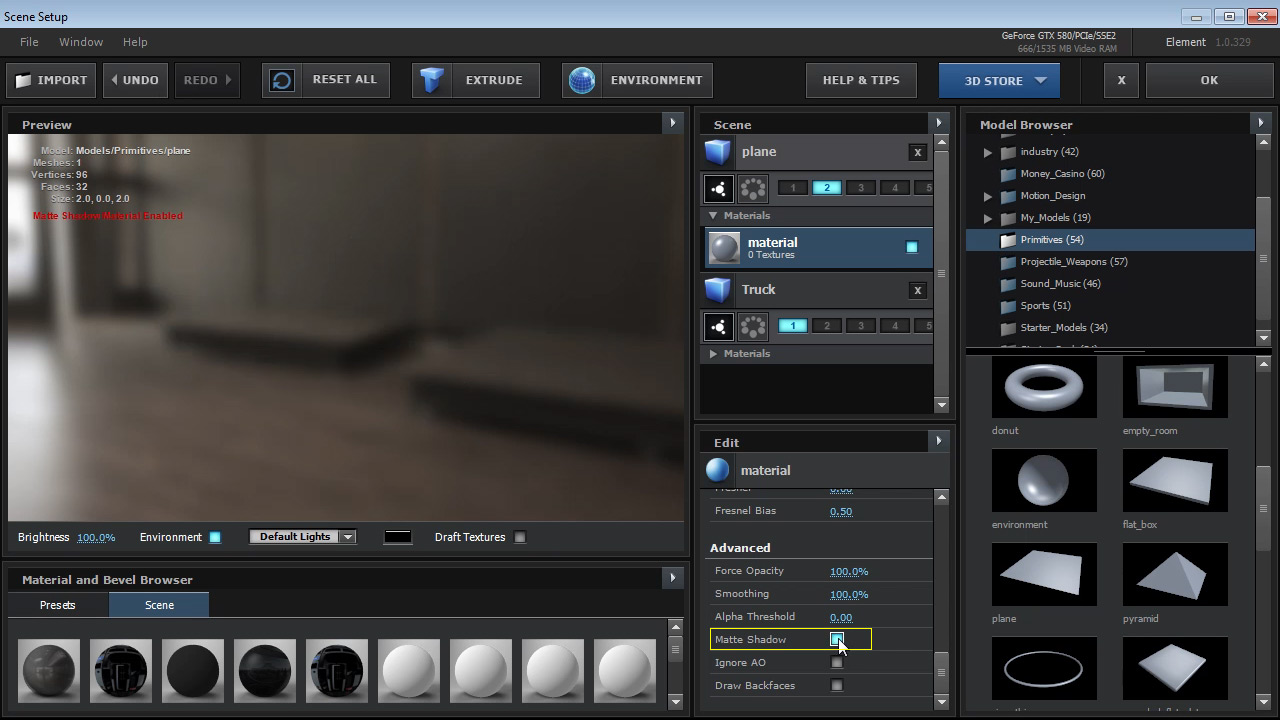
Force object to render invisible but receive ambient occlusion or occlude objects that intersect.

<figure><img src="https://2307539615-files.gitbook.io/~/files/v0/b/gitbook-x-prod.appspot.com/o/spaces%2FVXPIT6wWK7VeTYMAHNYe%2Fuploads%2FHkmyLNqJxEjBgvK2fkP2%2FMatte_Shadow.jpg?alt=media&#x26;token=2edba1f0-5016-4ecd-91f1-4607943d6bf8" alt=""><figcaption></figcaption></figure>

{% hint style="info" %}

#### ADJUST POSITION FIRST

You may want to adjust the position of your floor object before turning Matte Shadow on since it will render invisible. Make sure you have Ambient occlusion turned on in the Render Settings as well to catch on the floor.&#x20;
{% endhint %}

***

<table data-view="cards"><thead><tr><th data-hidden data-card-cover data-type="image">Cover image</th></tr></thead><tbody><tr><td><a href="https://2307539615-files.gitbook.io/~/files/v0/b/gitbook-x-prod.appspot.com/o/spaces%2FVXPIT6wWK7VeTYMAHNYe%2Fuploads%2FsElBV0utcdapttiyiVa9%2F3d_truck_composite.jpg?alt=media&#x26;token=5815784a-e950-4ec4-a311-35539c6e9e30">3d_truck_composite.jpg</a></td></tr></tbody></table>

**3D Truck Composite**\
• Use 3D Camera tracking in AE CS6 and Camera Tracker\
• Setup and align ground plane and adjust 3D coordinates\
• Build Matte Shadow object (ambient occlusion)\
\
[**WATCH NOW!**](https://www.videocopilot.net/help/element/tutorial/basic/3d_truck_composite/)

***

#### Ignore AO

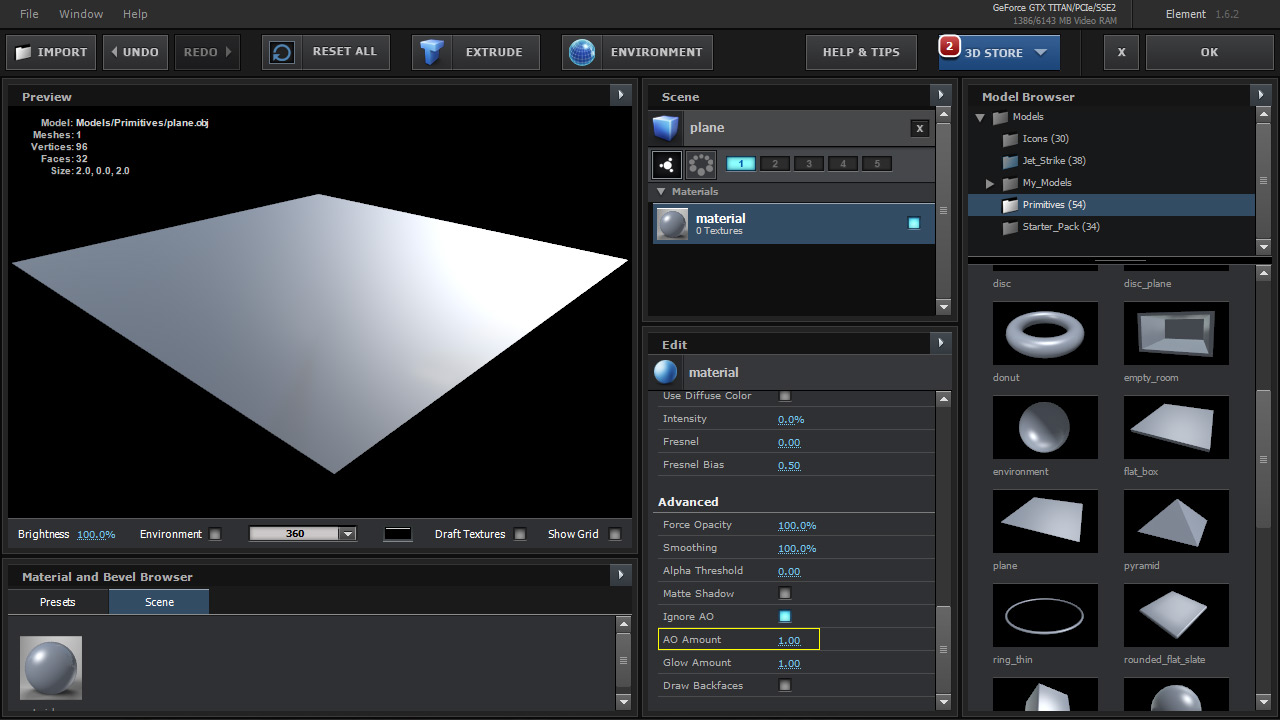
Material is not affected by ambient occlusion.

<figure><img src="https://2307539615-files.gitbook.io/~/files/v0/b/gitbook-x-prod.appspot.com/o/spaces%2FVXPIT6wWK7VeTYMAHNYe%2Fuploads%2F9l3HwNHDjtRjLxGpoRws%2FIgnore-AO.jpg?alt=media&#x26;token=28033e1d-4507-41cc-b273-6498fde9196e" alt=""><figcaption></figcaption></figure>

***

#### AO Amount

Control the amount of ambient occlusion this material will use on the polygons it is mapped to in relation to the main ambient occlusion settings in Element effects control panel render settings.

<figure><img src="https://2307539615-files.gitbook.io/~/files/v0/b/gitbook-x-prod.appspot.com/o/spaces%2FVXPIT6wWK7VeTYMAHNYe%2Fuploads%2FeHghelCQfnuvTdkH8jsm%2FAO-Amount.jpg?alt=media&#x26;token=1bdf6528-7a1b-4d24-beff-3efc502f12fd" alt=""><figcaption></figcaption></figure>

***

#### Glow Amount

Control the amount of glow this material will use in relation to the main Glow settings in Element effects control panel render settings.

<figure><img src="https://2307539615-files.gitbook.io/~/files/v0/b/gitbook-x-prod.appspot.com/o/spaces%2FVXPIT6wWK7VeTYMAHNYe%2Fuploads%2FsdzVLqSiSJL4T21LaHmU%2FGlow-Amount.jpg?alt=media&#x26;token=b317669b-d3e7-472c-a877-d00f80d0e5a8" alt=""><figcaption></figcaption></figure>

***

#### Draw Backfaces

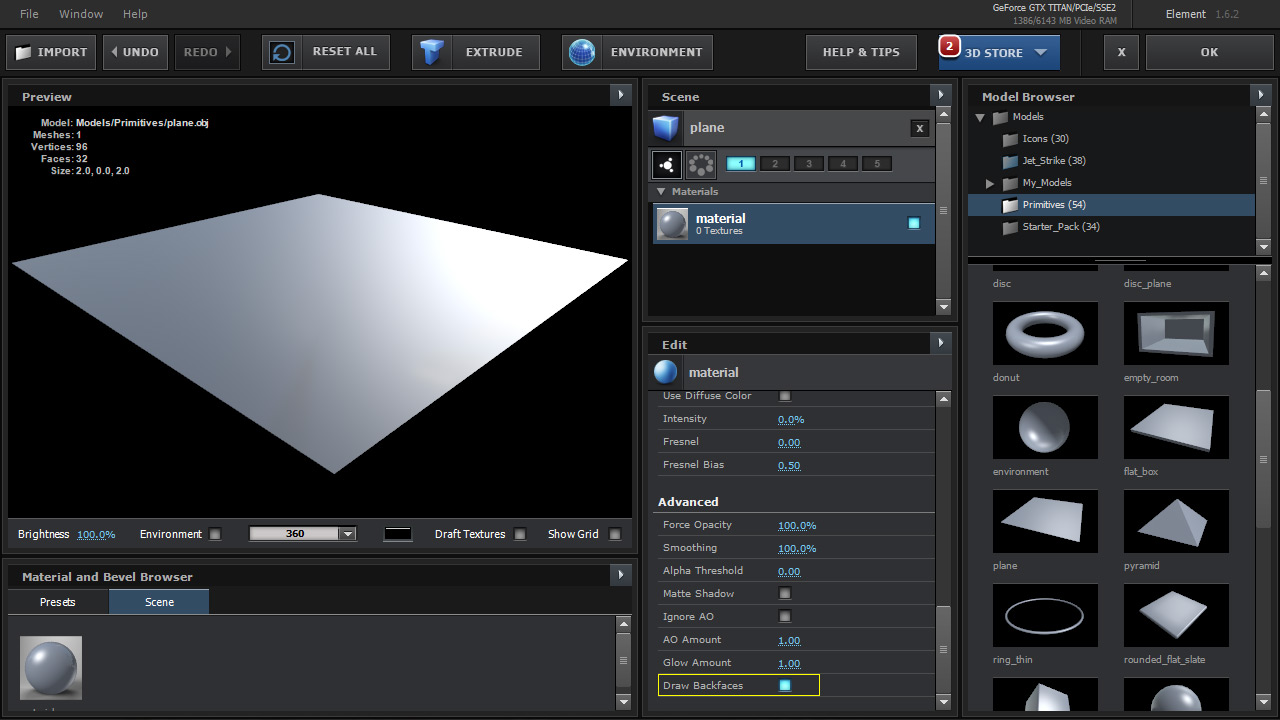
Force an object to render the backside of polygons for one-sided surfaces.

<figure><img src="https://2307539615-files.gitbook.io/~/files/v0/b/gitbook-x-prod.appspot.com/o/spaces%2FVXPIT6wWK7VeTYMAHNYe%2Fuploads%2FLcRGZhDmrZNvVCYx67Nf%2FDraw-BF.jpg?alt=media&#x26;token=0ee6a452-8a19-4253-a15f-1bf560883bc2" alt=""><figcaption></figcaption></figure>