# Object Transform and Anchor Point Settings
***
#### Transform
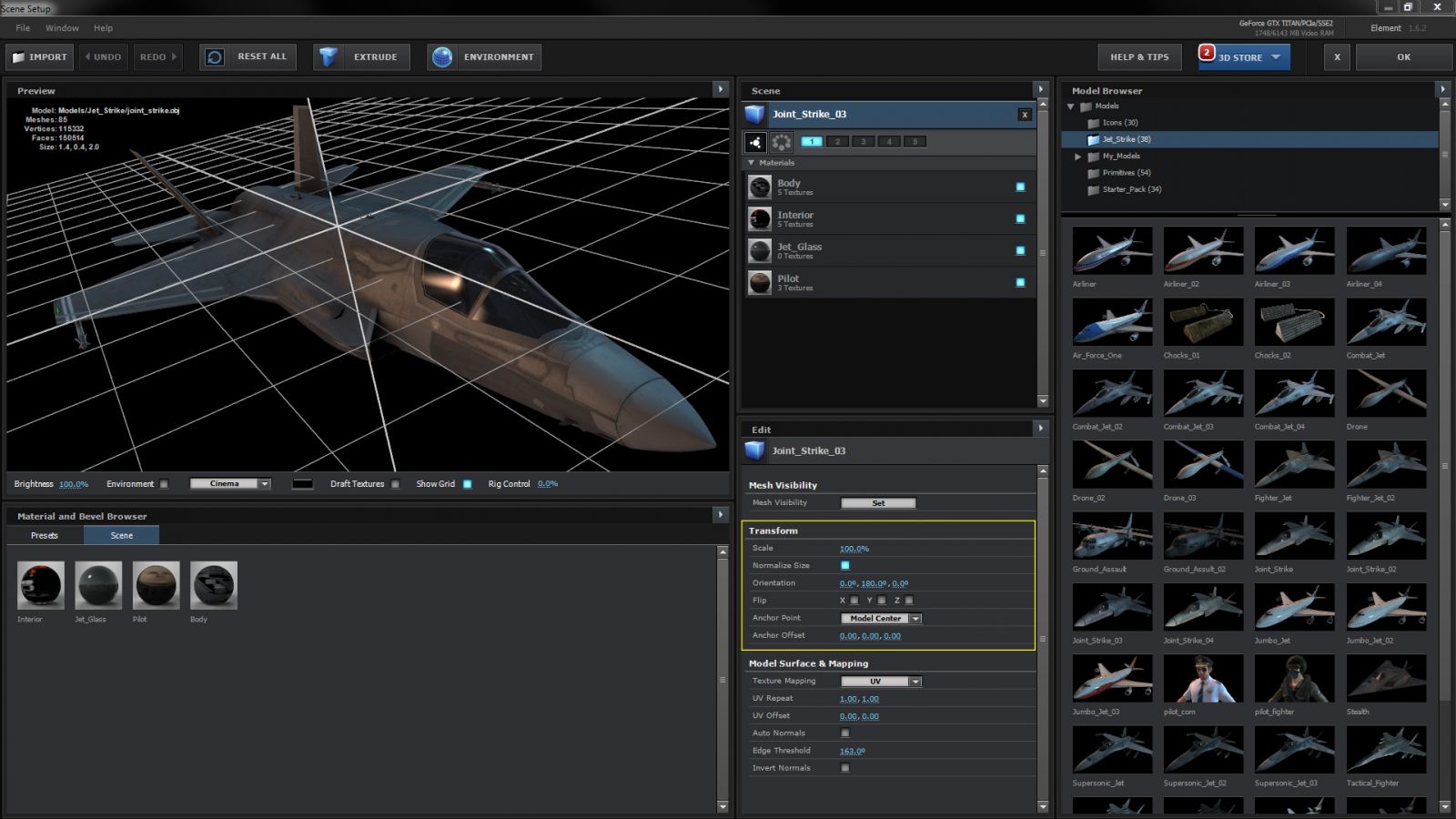
The Transform parameters allow you to manipulate your object's size, orientation, etc. in the scene view.
#### Scale
This determines the size of the object in the scene. You will not see the affects of this scale in the Scene Setup as the obj is a constant size in the preview window. Noticeable changes will occur when you click OK and it renders in your After Effects composition.
#### Normalize Size
With this checked on the object will autoscale to other objects in the scene
#### Orientation
Changes the Orientation of the object on the X, Y, or Z
#### Flip
Flip model on it X, Y, and Z axis
#### Anchor Point
Choose general anchor point position (Model Center, From Model, Top, Bottom, Front, Back, Left Right). See [Adjusting The Anchor Point](https://www.videocopilot.net/help/element/help_files_v2/animating_3d_objects/adjusting_the_anchor_point/).
#### Anchor Offset
Change the position of the anchor point. You may want to turn on the Grid in the viewfinder to see the anchor point moving. See [Adjusting The Anchor Point](https://www.videocopilot.net/help/element/help_files_v2/animating_3d_objects/adjusting_the_anchor_point/).